

Analyzing Huawei Cloud ELB Logs on LTS
Solution Overview
When distributing external traffic, ELB logs details of HTTP and HTTPS requests, such as URIs, client IP addresses and ports, and status codes.
You can use ELB access logs for auditing or search for logs by time and keyword. You can also obtain external access statistics by running SQL aggregation queries. For example, you can check the number of requests with 404 responses within a certain day, or analyze the unique visitors (UVs) or page views (PVs) within a week.
Planning Resources
You have purchased and used a Huawei Cloud load balancer.
Restrictions
ELB access logs only record layer 7 requests sent to the dedicated and shared load balancers. Requests to layer 4 shared load balancers are not logged.
Analyzing Huawei Cloud ELB Logs on LTS
- Ingest ELB access logs to LTS. For details, see Access Logging.
- Click
 in the upper left corner and choose Management & Governance > Log Tank Service.
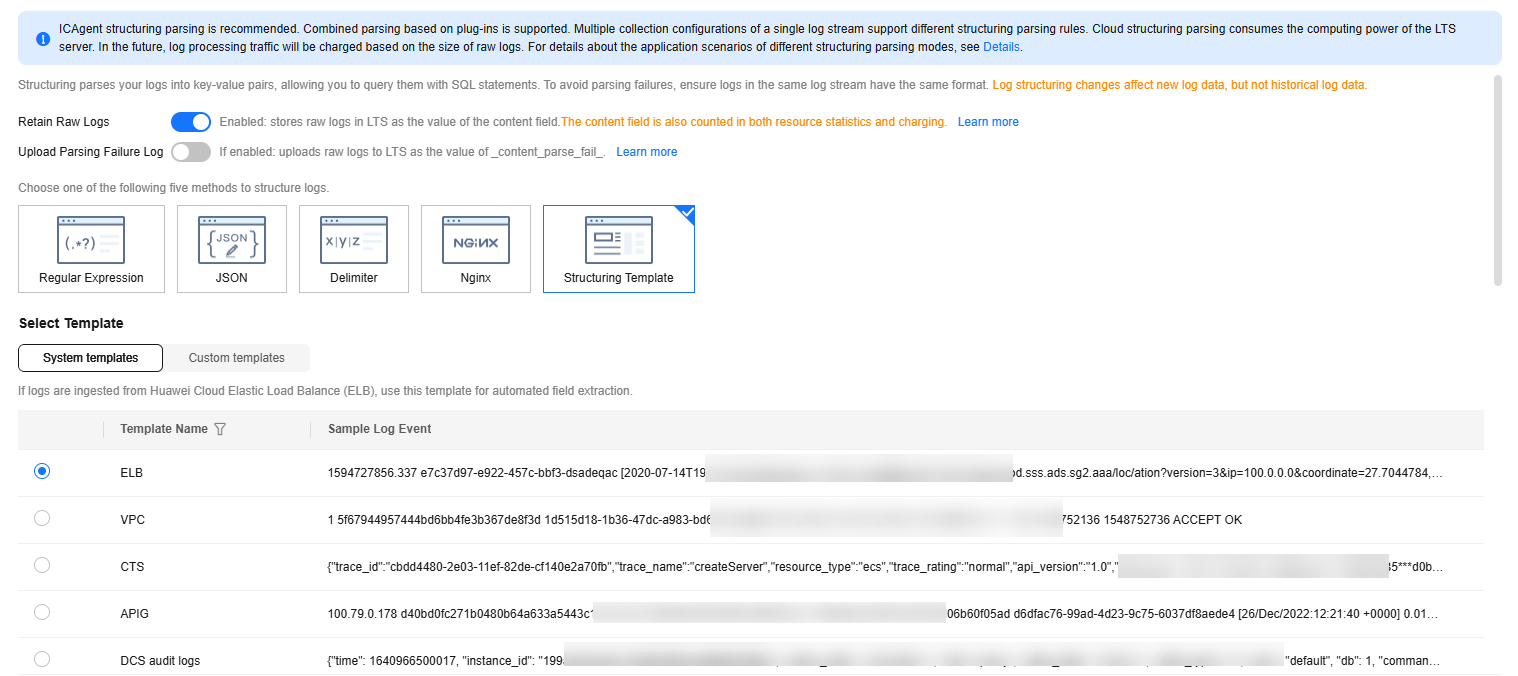
 - On the Log Management page, click a log stream's name to access its details page. Click Log Settings in the upper right corner. On the displayed page, click the Cloud Structuring Parsing tab, select Structuring Template as the extraction method, select ELB under System templates, and click Save. For more information about quick analysis, see Creating a Quick Analysis Task.
Figure 1 Configuring the structuring template
- On the log stream details page, click the Log Analysis tab and run SQL queries and analysis. For details about how to visualize query results, see Setting Cloud Structuring Parsing.
- To count the PVs within a week, run the following SQL statement:
select count(*) as pv
- To count the UVs within a week, run the following SQL statement:
select count(distinct remote_port) as uv
- To monitor service execution results by counting the distribution of response codes (2xx, 3xx, 4xx, and 5xx) across all URIs over one day, use the following SQL statement:
select host, router_request_uri as url, count(*) as pv,
sum(case when status >= 200 and status < 300 then 1 else 0 end )  as "2xx times",
sum(case when status >= 300 and status < 400 then 1 else 0 end )  as "3xx times",
sum(case when status >= 400 and status < 500 then 1 else 0 end )  as "4xx times",
sum(case when status >= 500 and status < 600 then 1 else 0 end )  as "5xx times"
group by host, router_request_uri
order by pv desc
limit 100
The query results can be displayed in a table, or bar, line, pie, or number chart. For details, see Visualizing Logs in Statistical Charts.
- To count the PVs within a week, run the following SQL statement:
Feedback
Was this page helpful?
Provide feedbackThank you very much for your feedback. We will continue working to improve the documentation.See the reply and handling status in My Cloud VOC.
For any further questions, feel free to contact us through the chatbot.
Chatbot


