

Configuring Disk Encryption
Server-Side Encryption
The RDS console provides server-side encryption with DEW-managed keys. DEW is short for Data Encryption Workshop.
DEW uses a third-party hardware security module (HSM) to protect keys, enabling you to easily create and control encryption keys. For security reasons, keys are not displayed in plaintext outside HSMs. All operations performed on keys are controlled and logged to meet supervision and compliance requirements.
If you enable server-side encryption, during instance creation and storage scale-up, the system encrypts data on the server before storing it. When you download an encrypted object, the server decrypts it first before sending it to you.
This section describes how to enable or modify disk encryption after an instance is purchased.
Prerequisites
You need to first create a key using DEW or use the default key that DEW comes with. When creating a DB instance, enable disk encryption and select an existing key or create a new one as the tenant key. The key is used for server-side encryption.
- You will need the KMS administrator permission for the region where RDS is deployed. This permission can be granted using Identity and Access Management (IAM). On the IAM console, add permission policies to user groups. For details, see Creating a User Group and Assigning Permissions.
- If you want to use a custom key to encrypt objects to be uploaded, create a key using DEW. RDS supports only symmetric keys. For details, see Creating a Key.
Constraints
- To use disk encryption, submit a service ticket.
- If you need to set scheduled disk encryption, submit a service ticket.
- Enabling disk encryption will cause a brief interruption, so enable it during off-peak hours.
- Data can be encrypted only when the instance is in the Available state. Once disk encryption is enabled, it cannot be disabled later.
- If the primary instance has high-availability read replicas, release the read replicas first.
- If backup encryption has been enabled for your instance, disable backup encryption first.
- Cluster instances and high-availability read replicas do not support disk encryption.
- Disk encryption does not encrypt backup data stored in Object Storage Service (OBS). For this purpose, you need to configure backup encryption separately.
- After disk encryption is enabled, newly added storage is encrypted using the key you selected when enabling disk encryption.
- After disk encryption settings are modified, newly added storage is encrypted using the new key.
- You can configure disk encryption only for existing instances that use any of the following storage types: cloud SSD, ultra-high I/O, extreme SSD, and flexible SSD.
- The AES_256 and SM4 algorithms are supported.
- If a shared KMS key is used, the corresponding CTS events are createdatakey and decrydatakey. Only the key owner can receive the events.
- Keep the key secure. Once it is disabled, deleted, or frozen, your instance will be inaccessible and its data may not be restored.
If disk encryption is enabled but backup encryption is not enabled, you can restore data to a new instance from backups.
If both disk encryption and backup encryption are enabled, any lost data cannot be restored.
Enabling Disk Encryption
- Click
 in the upper left corner and select a region.
 - Click
 in the upper left corner of the page and choose Databases > Relational Database Service.
 - On the Instances page, click the name of the target instance or read replica to go to the Summary page. To locate the read replica, click
 in front of the instance.
 - In the Storage & Backup area, toggle on the Disk Encryption switch
 .
. - In the displayed dialog box, choose a new cryptographic algorithm, select the scheduled time, and then click OK.
Figure 1 Enabling disk encryption
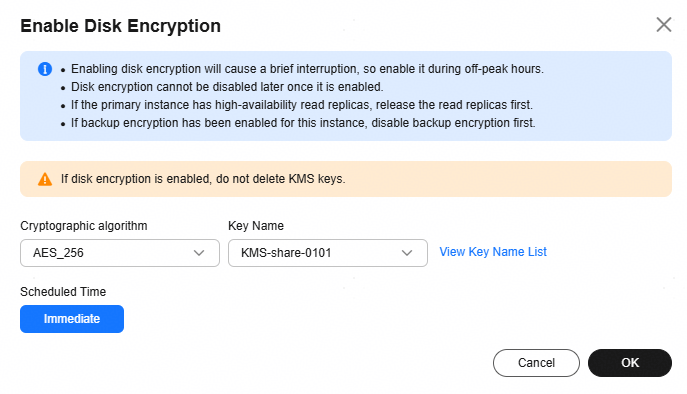
- Immediate: The system enables disk encryption immediately after you submit the request.
- During maintenance window: The system will enable disk encryption during the maintenance window you set.
- Return to the instance list. In the navigation pane, choose Task Center and check the progress of the disk encryption task.
- If you selected the Immediate option for the task:
Open the Instant Tasks tab page and search for MySQL instance disk encryption to view the task progress. Instant tasks cannot be canceled.
- If you selected the During maintenance window option for the task:
Open the Scheduled Tasks tab page and search for the instance ID to view the task progress. Scheduled tasks can be canceled.
For details, see Task Center.
- If you selected the Immediate option for the task:
Modifying Disk Encryption
You can change the keys for instances with disk encryption enabled.
- On the Instances page, click the name of the target instance or read replica to go to the Summary page. To locate the read replica, click
 in front of the instance.
 - In the Storage & Backup area, click Modify next to Disk Encryption to change the key.
- In the displayed dialog box, choose a new cryptographic algorithm, select the scheduled time, and then click OK.
- Immediate: The system enables disk encryption immediately after you submit the request.
- During maintenance window: The system will enable disk encryption during the maintenance window you set.
Disk encryption takes some time. You can go to the Task Center to view its progress.
Feedback
Was this page helpful?
Provide feedbackThank you very much for your feedback. We will continue working to improve the documentation.See the reply and handling status in My Cloud VOC.
For any further questions, feel free to contact us through the chatbot.
Chatbot


